Remote Parents' Evening Guidance

Making a Parents Evening Appointment Booking Online

Use the provided link to access the TSCG Microsoft Booking system where you will be able to make an online remote appointment via Teams with the lecturer/s. The appointment slots are 6 minutes long and the information below goes through the process for making the appointment.

1.

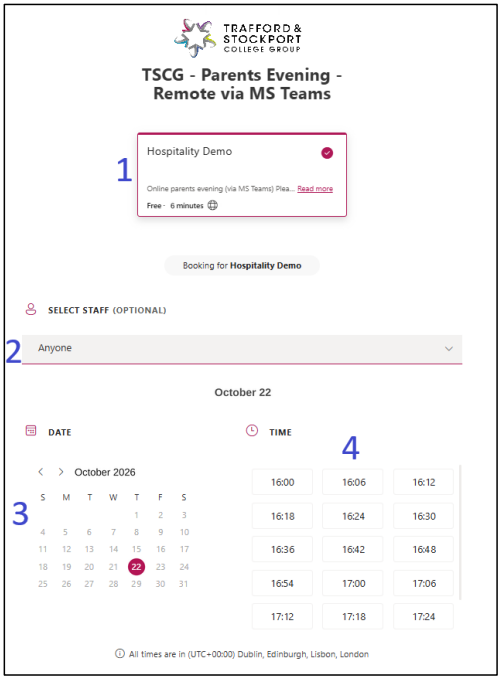
Once you have navigated to the link provided check you have the right department as shown below.

2.

There is a dropdown list of the department lecturers within the Select Staff section. It is crucial for you to select the lecturer from the dropdown list unless you will not have an appointment slot.

3.

Use the Date section to select 22nd October

4.

Use the Time section to choose a time which is most suitable for you to meet – Appointment are available from 4pm onwards.

5.

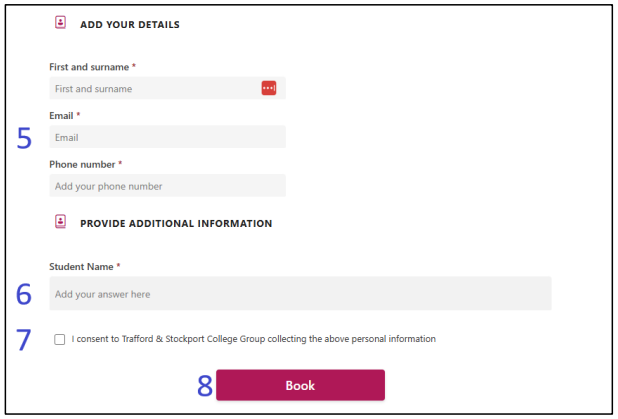
Provide your details so you can join the online meeting – you will also receive a confirmation email with the unique direct link to join the meeting on the 22nd of October

6.

Provide the students name you are making the meeting to discuss

7.

Tick the I consent box to approve you are happy for us to use the information you have provided to send you reminder emails and for the lecturer to have access to your contact details.

8.

Finally, click on the Book button to confirm the booking.

9.

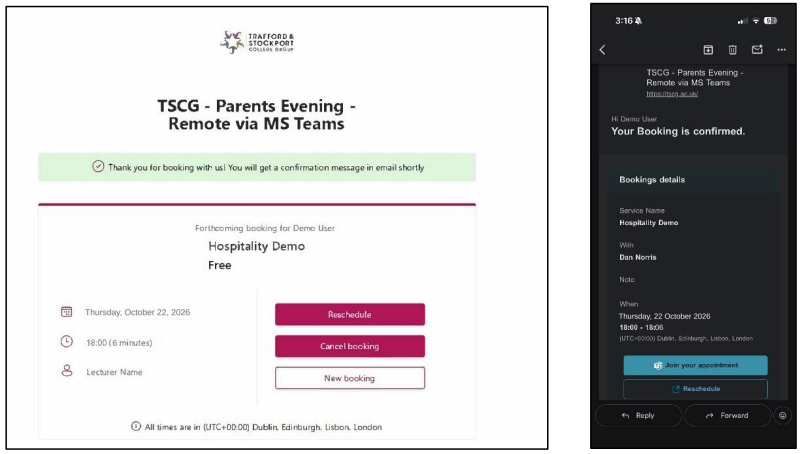
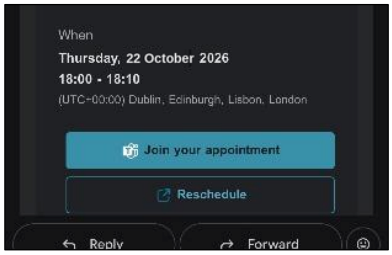
After you have clicked on Book button you will receive a confirmation page as shown below as an example. Additionally, you will receive a confirmation email with the same details along with the Join Appointment link which will only work on 22nd October.

Joining the Online Parents Evening Appointment

On the 22nd of October you will need to locate the email which was sent to you so you can use the unique direct booking link to join the meeting with the lecturer.

Once you have clicked onto the link you will be directed to Microsoft Teams. Follow the steps below for guidance.

Don’t worry you do not need to download any apps or software as it all works within the web browser (Safari, Google Chrome or Microsoft Edge)

1.

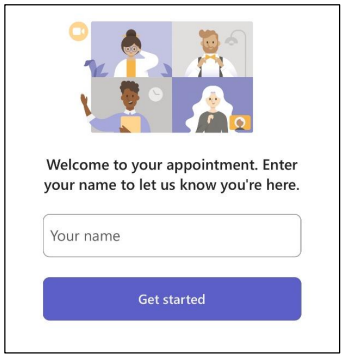
Enter your name for the lecturer to know who you are and for them to admit you into the appointment.

2.

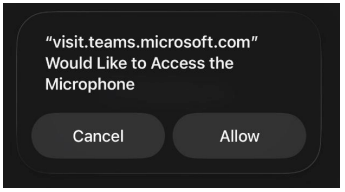
Allow access to Microphone and Camera. Click on Allow to grant temporary access.

3.

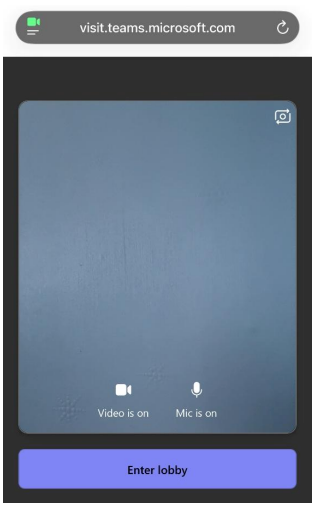
You will see a preview of your camera and microphone so you can check everything is working before the appointment

4.

Click on the Enter Lobby to join

5.

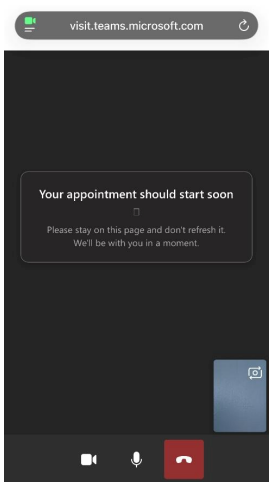
The lecturer will join the meeting at the appropriate time slot you have selected.

Once the meeting has finished click on the red end call button to close the connection.

If at any time you accidentally click on the red button and leave, there will be an option to rejoin the appointment slot.